
Features
Everything OnePaste does
A small Mac app with one job: put the right link, number or address under your cursor in a second — without breaking your flow or your privacy.
New · Smart Fill
See a form. Fill it in one keystroke.
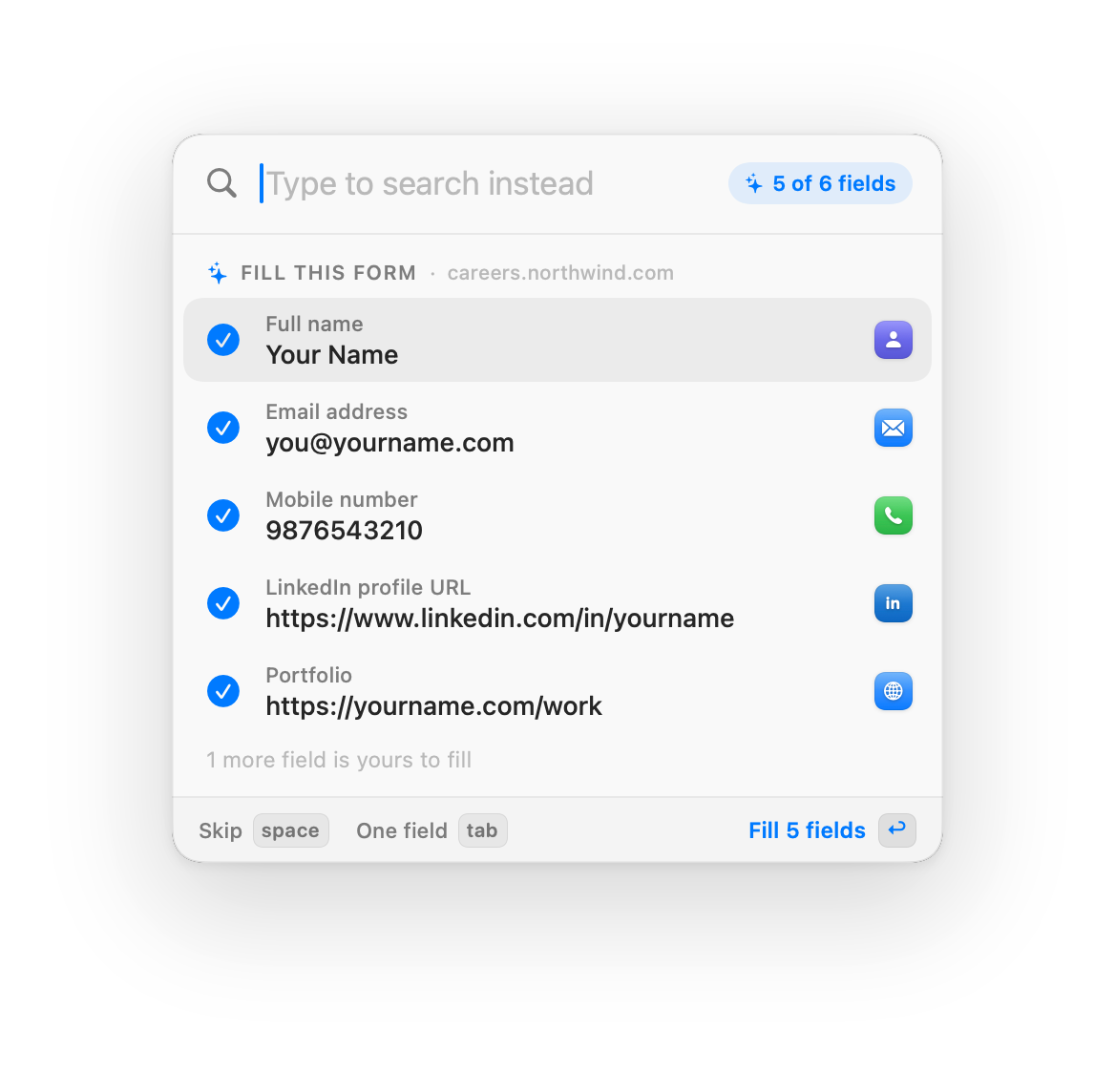
Double-tap in any field of a job application, checkout or KYC form. OnePaste reads every field’s label, shows what it’ll put where, and fills them all when you press ↩.
- Understands names, emails, phones, links, addresses, PIN codes, PAN, GSTIN, IFSC and card fields
- Formats each answer for the field — MM/YY, 10-digit mobile, https:// links
- space skips a field, ← → switches between saved answers
- Never fills password or hidden fields, never overwrites what you typed, never submits
Knows the field
The right answer is already selected.
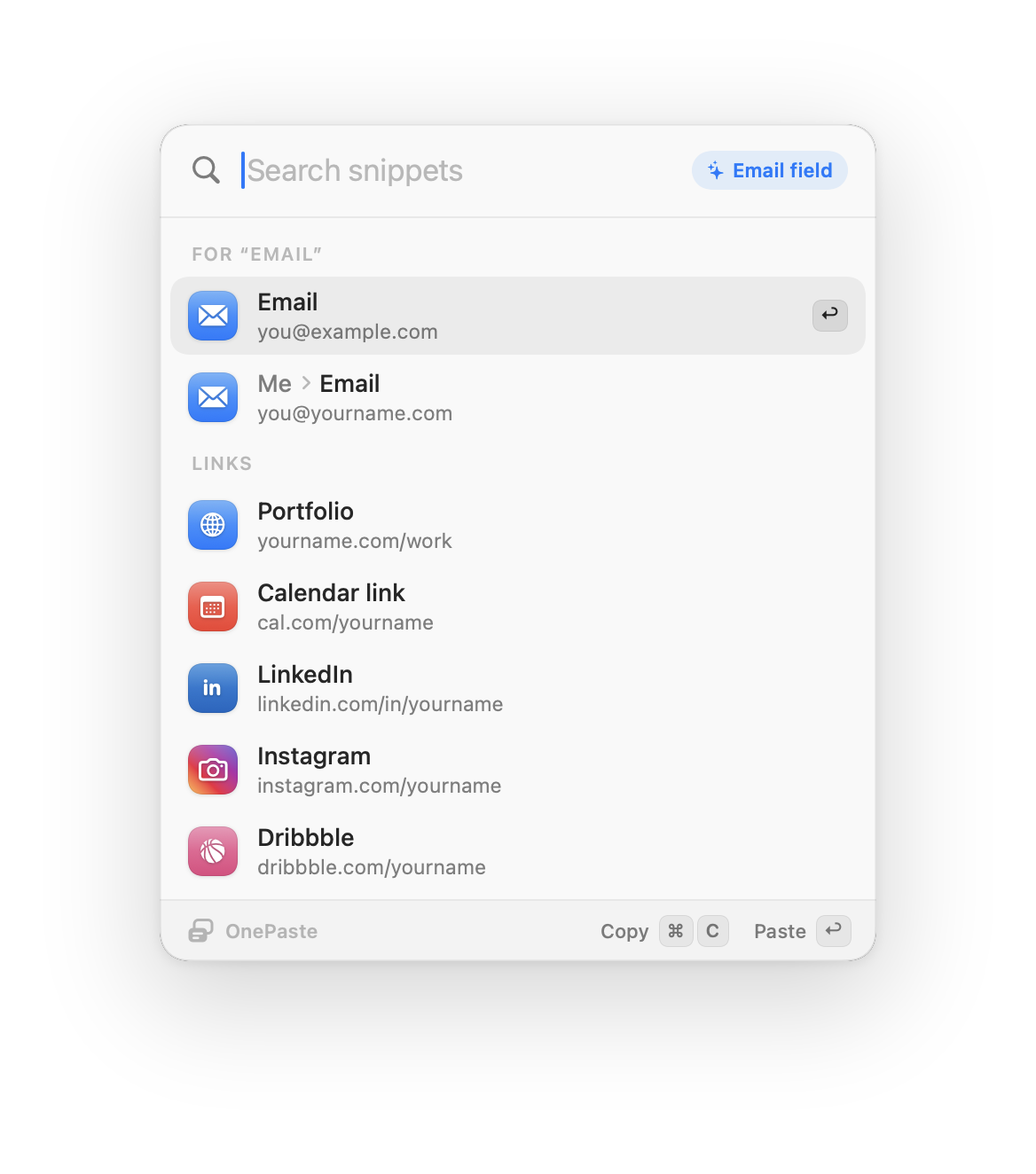
In a field labelled “Email” your email is on top; in “IFSC” it’s your IFSC. Just double-tap and press Return. OnePaste also remembers what you used on each site — your work email on LinkedIn, your HDFC card on that one checkout.
- Works in Safari and Mac apps out of the box
- Chrome, Edge, Brave and Arc after one browser setting
- Profiles keep your details together — add one from the Library
Works with Claude
Ask for it in plain words.
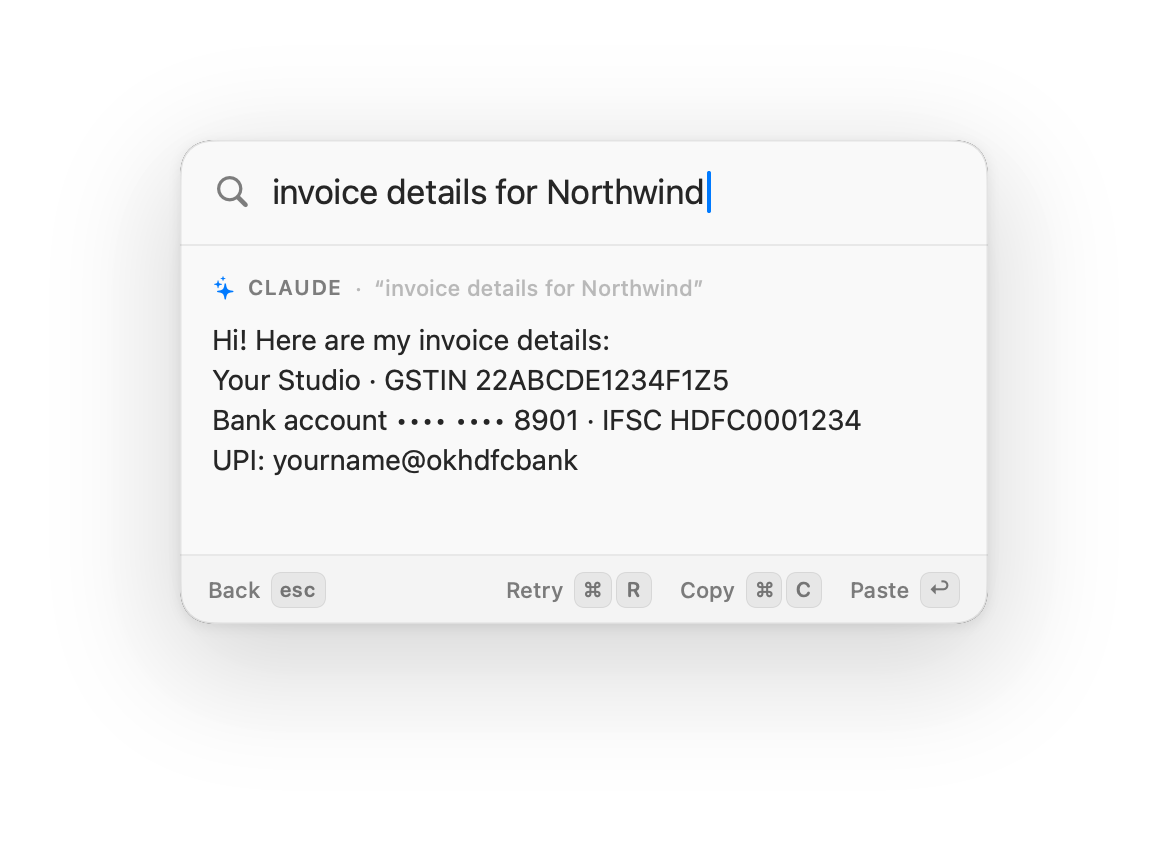
Connect Claude and type what you need — “invoice details for Northwind”, “a short intro with my portfolio and calendar link”. Claude writes it from your saved details and ↩ pastes it. Private numbers never leave your Mac: Claude sees placeholders, and OnePaste fills the real values in.
- ⌘J asks Claude from the overlay
- Import from anything: paste an email signature or invoice, keep the details
- Helps Smart Fill with fields it doesn’t recognise (only labels are sent)
- Claude Desktop and Claude Code can look up your details too — sensitive ones masked
- Off until you connect it — with your API key or Claude Code
Anywhere you type
Double-tap ⌥. It opens at your cursor.
OnePaste lives in your menu bar and listens for one gesture: two quick taps of the Option key. The overlay appears right next to your text cursor — like autocomplete, not a separate app.
- Works in native apps, every browser, and Electron apps like Slack and Notion
- Never steals focus, so the paste lands in the field you were in
- Choose Option, Command, Control or Shift as your trigger
Search, don’t memorize
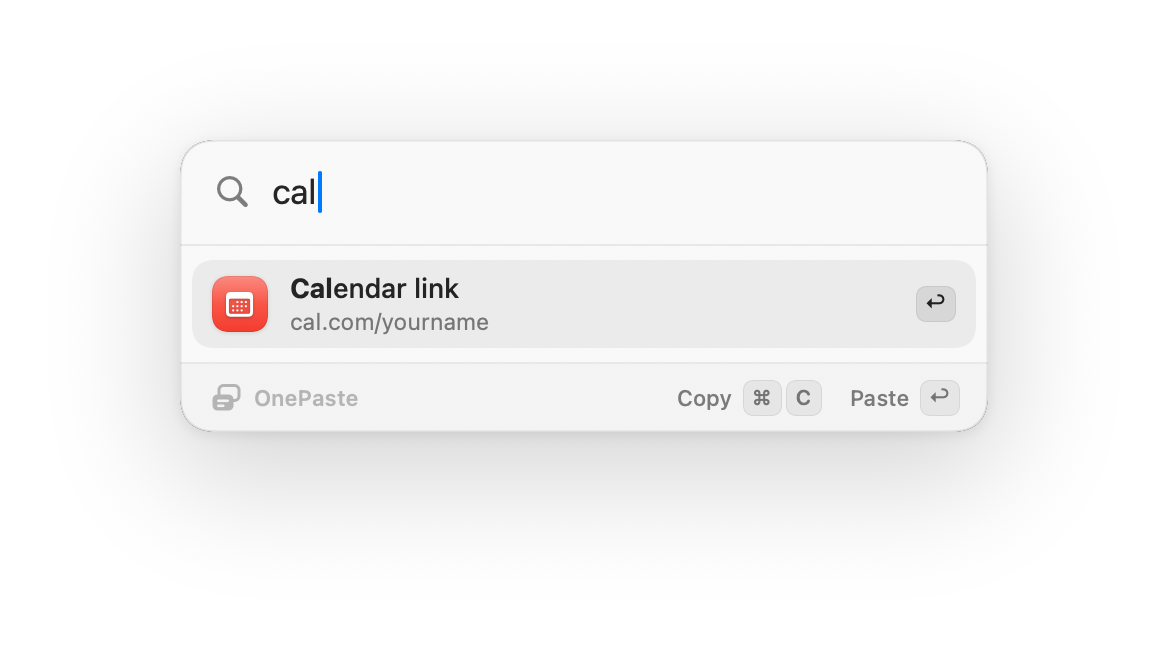
Find anything in two or three letters.
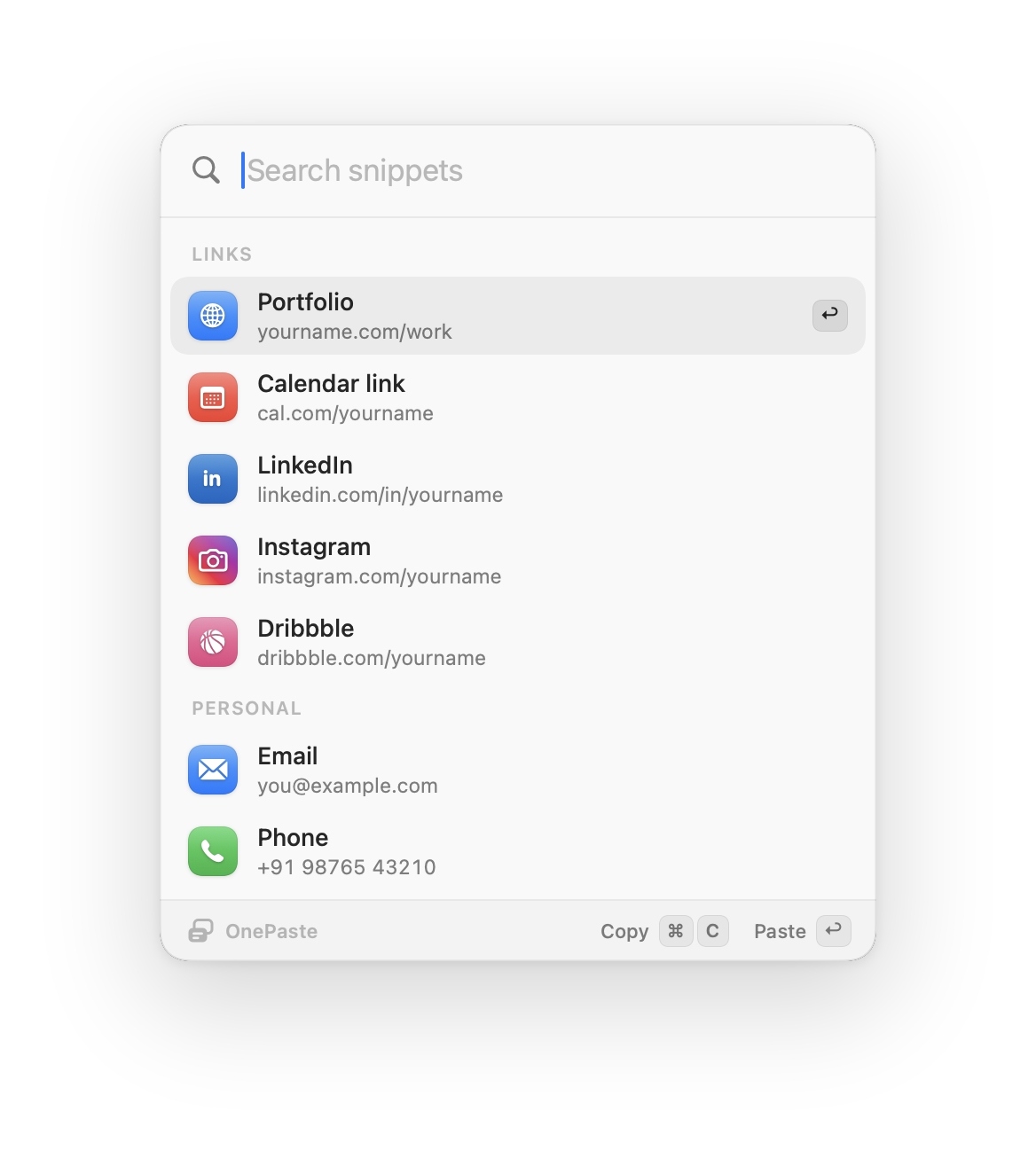
Type “cal” for your calendar link or “ig” for Instagram. OnePaste matches titles, aliases and links, and learns which items you use most.
- Add keywords and aliases to any snippet
- ↑ ↓ to move, ↩ to paste, ⌘C to copy instead
- Hold ⌘ and press 1–9 to paste instantly
Multi-field snippets
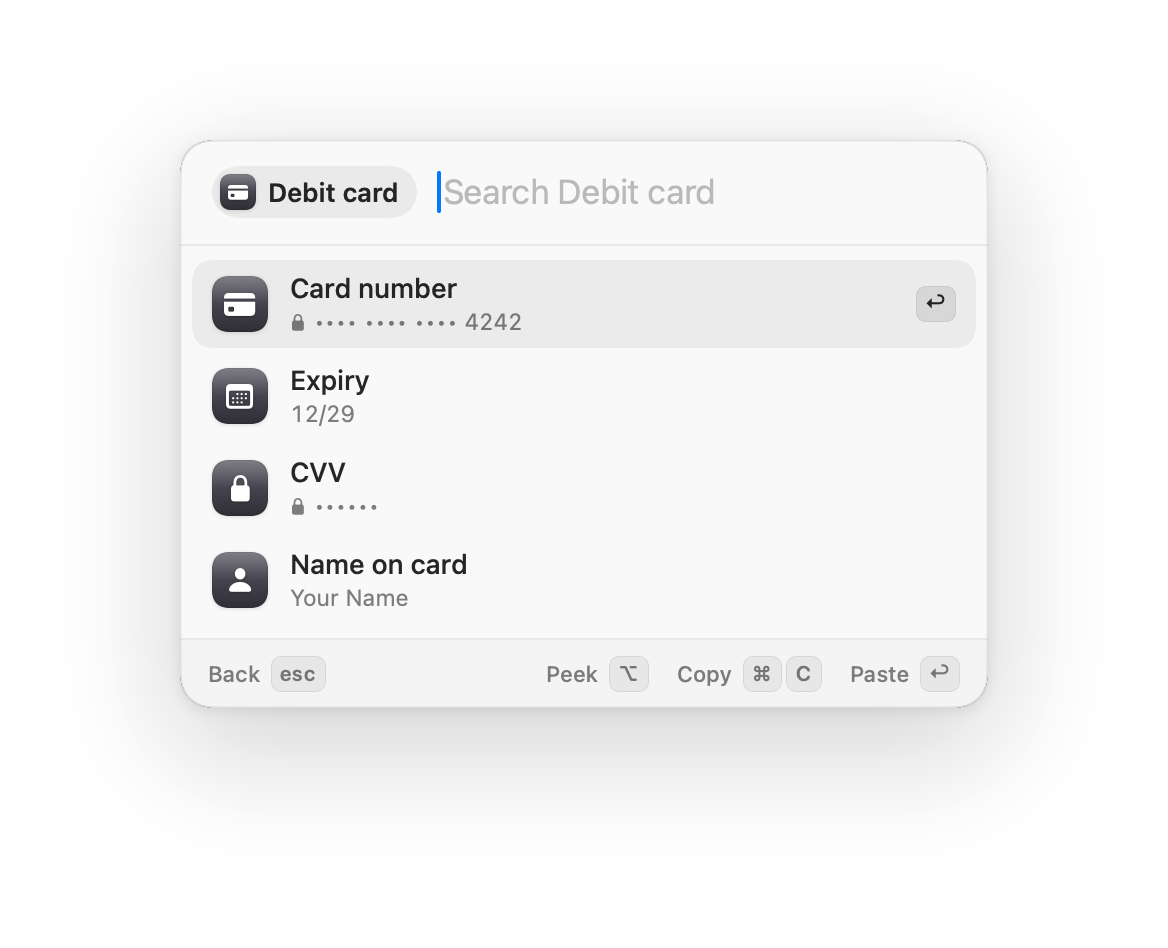
Cards and bank details, in parts.
Keep a card’s number, expiry, CVV and name together — or an account number with its IFSC. Press → to open it and paste each field where it belongs.
- Search a field directly, like “cvv” or “ifsc”
- Mark individual fields as sensitive
- Drag any row straight into another app
Privacy
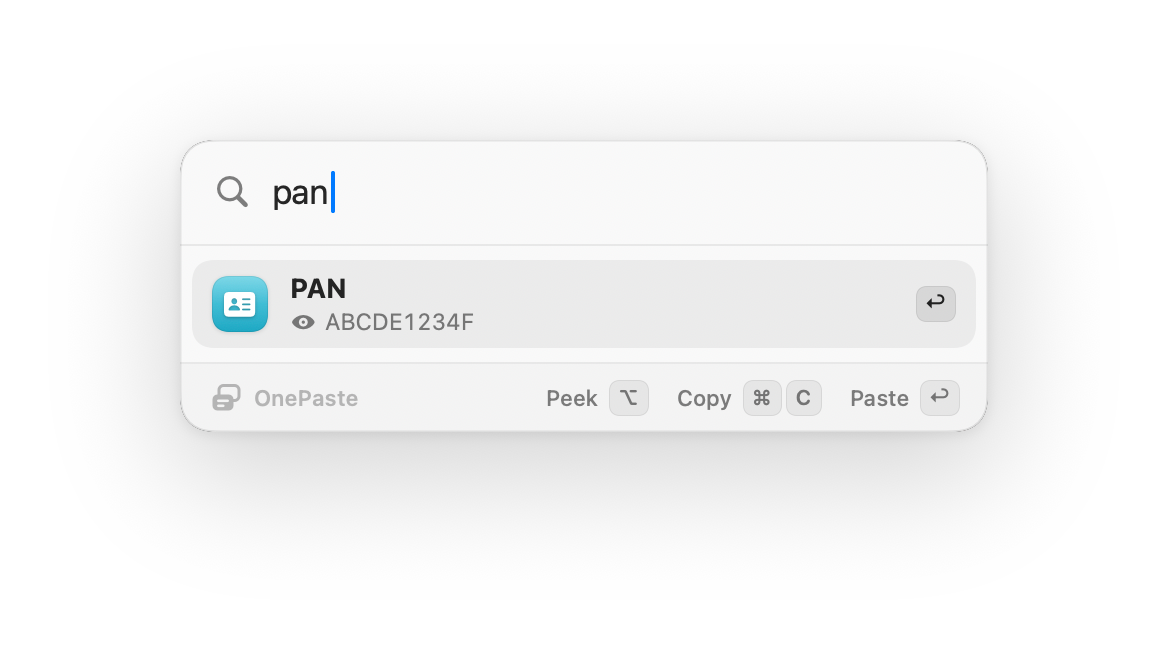
Sensitive details stay sensitive.
PAN, Aadhaar and card numbers are recognized and masked automatically — only the last four characters show. Hold ⌥ to peek when you need to check one.
- Copied sensitive values are hidden from clipboard managers
- …and wiped from the clipboard after one minute
- The overlay is excluded from screen sharing and recordings
And the rest
The details you’d expect from a great Mac app.
Clipboard restored
OnePaste swaps your clipboard for a moment to paste, then puts back whatever you had copied.
Import from your website
Enter your portfolio or link-in-bio page — Linktree, Zaap, Bento, Read.cv — and OnePaste picks out your profiles.
Import from Contacts
Pull your name, emails, phone numbers and links from your “My Card” in one click, with your permission.
Collections & Library
Organize snippets into collections, reorder them, and undo any delete.
Smart icons
Instagram, LinkedIn, Behance, Dribbble, GitHub, calendars, email, phone, IDs and cards are recognized at a glance.
Indian formats
PAN, Aadhaar, UPI IDs, IFSC and GSTIN are understood — and the sensitive ones masked.
Keyboard first
Everything works from the keyboard, with clear hints in the overlay so you never have to guess.
Haptics & sound
A gentle trackpad tap confirms each paste. Add a sound if you like.
No account, ever
Your library is a file on your Mac. Export it to JSON any time.
Shortcuts
Everything at your fingertips.
| Keys | What it does |
|---|---|
| ⌥ ⌥ | Open or close OnePaste (double-tap) |
| ↑ ↓ then ↩ | Choose and paste |
| ⌘ 1–9 | Paste one of the first nine items instantly |
| ⌘ C | Copy instead of pasting |
| → / esc | Open a multi-field snippet / go back |
| Hold ⌥ | Peek at a masked value |
| ⌘ N · ⌘ E | New snippet · edit the selected one |
Frequently asked questions
Which apps does OnePaste work in?
Any app where you can type: Mail, Messages, Slack, WhatsApp, Notion, Figma, Word, Pages, and every browser including Chrome, Safari, Arc and Firefox. If the app doesn’t report where your text cursor is, the overlay opens in the middle of the screen instead.
Can I change the double-tap key?
Yes. Option is the default, and you can switch to Command, Control or Shift in Settings.
Does OnePaste support rich text, images or variables?
Not yet. OnePaste pastes plain text, which is what forms, chats and emails need for links and details. It also means formatting never comes along by accident.
Can I fill a whole form in one go?
Yes. Smart Fill finds every field it recognises on the form you’re looking at and shows what it will put in each. Press Return to fill them all. Chrome, Edge, Brave and Arc need one setting first (View › Developer › Allow JavaScript from Apple Events).
How do I add my links quickly?
During setup you can fill in common slots like LinkedIn or Instagram — a handle is enough — or import everything from your website or link-in-bio page, your Contacts card, or a list pasted from Notion or Notes.